
Self-host Agent Zero
An agent that installs, codes, and remembers, on a computer of its own.
Shelley handles the setup. About 15 minutes. Needs a 40 GB disk: Shelley sends you a link to grow it.
Prefer a terminal?
curl -fsSL https://exe-staging.dev/deploy/agent-zero/prompt.txt | ssh exe.dev new --disk=40GB --prompt=/dev/stdinAgent Zero is an open-source agent framework that uses a computer the way you would. Ask it for something and it plans, opens a terminal, installs what it needs, writes code, runs it, reads the output, and tries again, with every step on screen. It remembers what it learned for next time, and hands parts of a job to subordinate agents.
It wants a whole Linux box, root and all. This page gives it one: a container on an exe.dev VM that does nothing else, so nothing it does can touch your laptop. The web UI signs you in with your exe.dev login, and model usage is billed to your exe.dev account through the LLM integration. There's no password to keep and no API key to find.
What you get#
- Agent Zero's web UI at
https://<vm>.exe.xyz/, signed in with your exe.dev login and no second password. - GPT-6.1 Sol through exe.dev's LLM integration, with no API key to paste, and a Claude preset one click away.
- A Linux box of the agent's own, where it installs packages, writes code, and runs it as root without touching your laptop.
- Memory, chats, and files kept on the VM's disk, through restarts and updates.
- Nightly backups of all of it in
~/backups/agent-zero.
What's running, and where
https://my-agent-zero.exe.xyz/
The Agent Zero web UI, behind your exe.dev login
https://my-agent-zero.exe.xyz/api/api_message
Agent Zero's API, for scripts with a VM token and Agent Zero's API key
Deploy with Shelley#
Click Deploy and Shelley will set up Agent Zero on a new VM, then check that it works. No config-file wrangling required.
Agent Zero needs a 40 GB disk, more than a new VM has. Shelley checks first and, if it's too small, gives you a link to grow it; the terminal command below makes the VM that size from the start.
Prefer a terminal?
curl -fsSL \
  https://exe-staging.dev/deploy/agent-zero/prompt.txt \
  | ssh exe.dev new --disk=40GB --prompt=/dev/stdin
What Shelley is told
Set up Agent Zero on this VM by following the exe.dev recipe at https://exe-staging.dev/deploy/agent-zero.md?via=deploy from top to bottom.

The recipe's example VM name is my-agent-zero. This VM's name is the output of `hostname`: use it wherever the recipe writes my-agent-zero. Skip the step that creates the VM; you are on it.

This recipe needs a 40GB disk, and a new VM's may be smaller. Before you install anything, run `df -h /`. If its size is under 36G, stop and ask me to grow the disk, either with this link: https://exe.dev/suggest?command=resize%20my-agent-zero%20--disk%3D40GB or, on my computer, with `ssh exe.dev resize my-agent-zero --disk=40GB`. When I say it's done, run `sudo resize2fs "$(findmnt -no SOURCE /)"`, check `df -h /` again, and carry on.

You are done when all of these are true. Check each one yourself:
- Agent Zero's web UI at `https://<vm>.exe.xyz/`, signed in with your exe.dev login and no second password.
- GPT-6.1 Sol through exe.dev's LLM integration, with no API key to paste, and a Claude preset one click away.
- A Linux box of the agent's own, where it installs packages, writes code, and runs it as root without touching your laptop.
- Memory, chats, and files kept on the VM's disk, through restarts and updates.
- Nightly backups of all of it in `~/backups/agent-zero`.

Read the whole recipe, including the closed details. For initial setup,
follow "Install by hand" first, skipping VM creation and SSH but not
the disk check. The opening walkthrough is for the owner. Do not run
the restore or update instructions.
Keep the VM private. Never run share set-public or share add, turn on
Agent Zero's Remote Control tunnel, or put a wildcard in
ALLOWED_ORIGINS. On an existing VM, ask before replacing
~/agent-zero or anything else on port 8000.
Verify the container healthy, /api/health answering, the model reply
in "Check it answers", the backup timer, and a tested archive. Do not
reboot. Never print the API key or .env in full.
Finish with the web UI URL.

Finish with the URLs I should open.
Also at /deploy/agent-zero/prompt.txt. The recipe it follows is /deploy/agent-zero.md.
Give it a job#
Open https://my-agent-zero.exe.xyz/ and sign in to exe.dev. Close the
What's New box, then try:
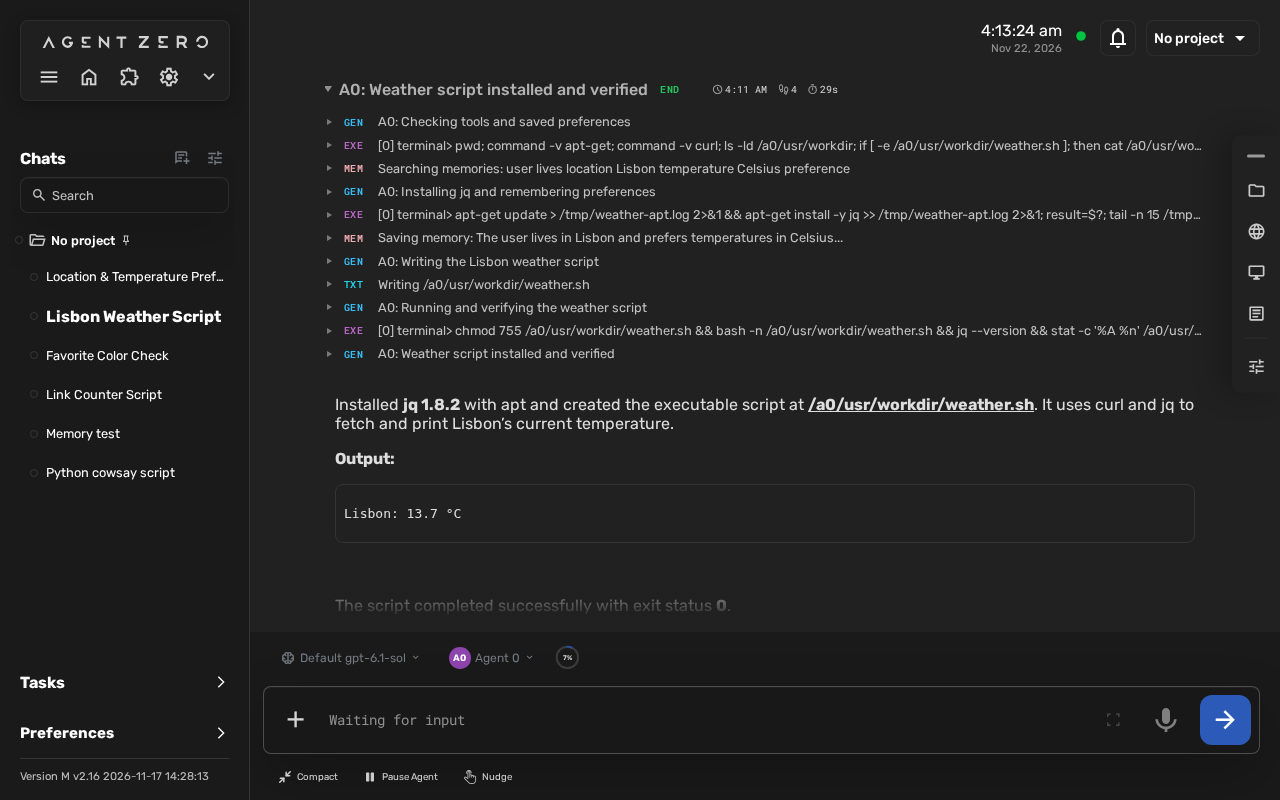
Install the jq command-line tool with apt, write a shell script /a0/usr/workdir/weather.sh that uses curl and jq to print the current temperature in Lisbon from https://api.open-meteo.com/v1/forecast?latitude=38.72&longitude=-9.14¤t=temperature_2m, run it, and show the output. Also remember for future chats: I live in Lisbon and prefer Celsius.
In half a minute it has installed jq, written and tested the script, and saved a memory. Click any step to see the command and its output. Start a new chat and ask where you live: it remembers.
Warning
Keep this VM private. The agent runs any command it likes as root in its container, with internet access, and anyone who can open the web UI can tell it what to do. Don't make the VM public or share it, and don't keep unrelated secrets on it.
Pick a model#
The switcher above the message box picks a preset. Default runs GPT-6.1 Sol for the main work and GPT-6 Luna for quick utility jobs such as titles and memory, as Agent Zero's own defaults do. Claude swaps in Claude Opus 5.5. Both go through the LLM integration, and the API keys in Agent Zero's settings are placeholders, not real keys.
Presets live in ~/agent-zero/usr/plugins/_model_config/presets.yaml,
and Settings → Agent Settings → Models edits them. Any model the
integration offers works: the provider is OpenAI with API base
https://llm.int.exe.xyz/v1, or Anthropic with
https://llm.int.exe.xyz. Memory search uses a small embedding model
that runs on the VM, so it costs nothing.
Work out what it can reach#
Inside its container Agent Zero is root on a Kali Linux system. Outside
it, on the VM, it can reach only one folder, ~/agent-zero/usr, which
it sees as /a0/usr:
In ~/agent-zero/usr |
What it holds |
|---|---|
workdir/ |
The files it makes for you. Ask it to keep things here. |
memory/ |
What it remembers. Browse and edit it from Memory, under the arrow beside the settings gear. |
knowledge/ |
Documents you give it to read and recall. |
chats/, projects/, scheduler/ |
Conversations, projects, and scheduled tasks. |
.env, settings.json, plugins/ |
Settings and keys. |
Packages it installs with apt or pip live in the container, not in
that folder, so they vanish when the container is recreated, as an
update does. That's handy for experiments: anything it breaks is gone
too. For a tool it needs every time, ask it to note that in memory, or
keep a setup script in workdir/.
For a risky job, copy the whole VM first. On your computer:
ssh exe.dev cp my-agent-zero my-agent-zero-try
The copy has the same chats, memory, and settings. Before you open its web UI, point Agent Zero at the copy's address. On the copy:
cd ~/agent-zero &&
sudo sed -i "s|^ALLOWED_ORIGINS=https://[^,]*|ALLOWED_ORIGINS=https://$(hostname).exe.xyz|" usr/.env &&
docker compose restart
Delete whichever one you're done with with ssh exe.dev rm. For a job
that needs the models but nothing else on the internet, add
--egress=integrations to cp: see
internet access. Agent Zero can't install
packages that way.
Send it work from scripts#
Agent Zero has a small HTTP API. Through exe.dev, a request needs two keys: a VM token for exe.dev's proxy and Agent Zero's API key for Agent Zero. Find the API key in Settings → External Services → External API, or on the VM:
docker exec -w /a0 agent-zero /opt/venv-a0/bin/python -c \
  "from helpers import dotenv; dotenv.load_dotenv(); from helpers.settings import create_auth_token; print(create_auth_token())"
On your computer, make a VM token, then send a message:
VM_TOKEN=$(ssh exe.dev ssh-key generate-api-key --vm=my-agent-zero --label=agent-zero-api)
A0_KEY=paste-the-api-key
curl -s https://my-agent-zero.exe.xyz/api/api_message \
  -H "X-Exedev-Authorization: Bearer $VM_TOKEN" \
  -H "X-API-KEY: $A0_KEY" \
  -H 'Content-Type: application/json' \
  -d '{"message": "Where do I live? One line."}'
The reply is JSON with a response and a context_id. Send the
context_id back to continue the same chat. The API holds the request
open until the job is done, so give long jobs a long timeout.
Agent Zero can also be an MCP server for other agents, and use other MCP servers' tools: both are under Settings → MCP/A2A. See its MCP guide. A client reaching it through exe.dev needs the VM token header too.
Keep the memories#
Everything that matters is in ~/agent-zero: the Compose file and the
usr folder. A nightly backup at 03:30 UTC puts a copy in
~/backups/agent-zero and keeps the newest seven. It pauses the agent
for the few seconds it takes, so a running job carries on afterwards.
Copy the backups off the VM, too. On your computer:
rsync -av my-agent-zero.exe.xyz:backups/agent-zero/ ./agent-zero-backups/
Keep those copies private: they hold your chats, memory, and settings. Agent Zero's own Backup & Restore, under Settings → Check for updates, downloads a copy to your browser instead.
Setup and upkeep#
No need to read on unless you're curious—or doing it yourself.
Install by hand
Create the VM#
On your computer (pick another name if my-agent-zero is taken):
ssh exe.dev new --name=my-agent-zero --disk=40GB
ssh my-agent-zero.exe.xyz
All remaining installation commands run on the VM, as exedev.
Commands use hostname, so your VM can have any name.
Room on the disk#
The image takes 12 GB. Check the disk:
df -h /
If Size is under 36G, the VM was made with a smaller disk. Grow it with
this link
(with your VM's name), or on your computer with
ssh exe.dev resize my-agent-zero --disk=40GB. Then, back on the VM, grow
the filesystem to match:
sudo resize2fs "$(findmnt -no SOURCE /)"
df -h /
Get Docker ready#
Enable Docker at boot, or exe.dev's on-demand Docker won't start Agent Zero after a reboot:
sudo systemctl enable --now docker.service
systemctl is-enabled docker.service
Write the settings#
Agent Zero keeps its data in ~/agent-zero/usr. Its .env names the
web address it accepts, since exe.dev's login stands in for Agent
Zero's own, and gives the model providers placeholder keys: the LLM
integration needs none.
mkdir -p ~/agent-zero/usr/plugins/_model_config
cd ~/agent-zero
(umask 077; cat > usr/.env <<EOF
ALLOWED_ORIGINS=https://$(hostname).exe.xyz,*://localhost:*,*://127.0.0.1:*
OPENAI_API_KEY=exe-llm-integration
ANTHROPIC_API_KEY=exe-llm-integration
EOF
)
The model presets: GPT for the main work and the utility jobs, a local embedding model for memory, and a Claude preset to switch to:
cat > usr/plugins/_model_config/presets.yaml <<'EOF'
- name: Default
  chat:
    provider: openai
    name: gpt-6.1-sol
    api_base: https://llm.int.exe.xyz/v1
    ctx_length: 200000
    ctx_history: 0.7
    vision: true
  utility:
    provider: openai
    name: gpt-6-luna
    api_base: https://llm.int.exe.xyz/v1
    ctx_length: 128000
    ctx_input: 0.7
  embedding:
    provider: huggingface
    name: sentence-transformers/all-MiniLM-L6-v2
- name: Claude
  chat:
    provider: anthropic
    name: claude-opus-5-5
    api_base: https://llm.int.exe.xyz
    ctx_length: 200000
    ctx_history: 0.7
    vision: true
  utility:
    provider: openai
    name: gpt-6-luna
    api_base: https://llm.int.exe.xyz/v1
    ctx_length: 128000
    ctx_input: 0.7
EOF
Start Agent Zero#
The Compose file pins the tested release and publishes the web UI on
port 8000, where exe.dev's proxy sends https://<vm>.exe.xyz/:
cat > compose.yaml <<'EOF'
services:
  agent-zero:
    image: agent0ai/agent-zero:v2.16
    container_name: agent-zero
    restart: unless-stopped
    ports:
      - "8000:80"
    volumes:
      - ./usr:/a0/usr
    ulimits:
      nofile:
        soft: 65535
        hard: 65535
EOF
docker compose up -d
The pull takes a few minutes. Then wait for it to answer:
until curl -sf -o /dev/null localhost:8000/api/health; do sleep 3; done
curl -s localhost:8000/api/health; echo
Expect JSON with "tag": "v2.16".
Check it answers#
Ask it something through its API. The first answer takes a little longer while it loads the embedding model:
A0_KEY=$(docker exec -w /a0 agent-zero /opt/venv-a0/bin/python -c \
  "from helpers import dotenv; dotenv.load_dotenv(); from helpers.settings import create_auth_token; print(create_auth_token())")
curl -s -m 300 localhost:8000/api/api_message -H "X-API-KEY: $A0_KEY" \
  -H 'Content-Type: application/json' \
  -d '{"message": "Run uname -n in the terminal and reply with its output only."}'
echo
Expect a response with a container ID: the agent's own hostname.
Back it up every night#
A small script pauses the agent, archives ~/agent-zero, and keeps
the newest seven; a systemd timer runs it nightly:
sudo tee /usr/local/bin/agent-zero-backup >/dev/null <<'EOF'
#!/bin/sh
# Nightly copy of ~/agent-zero (settings, chats, memory, files), keeping 7.
set -eu
src=/home/exedev/agent-zero
dest=/home/exedev/backups/agent-zero
mkdir -p "$dest"
cd "$src"
docker compose pause            # freeze the agent so the copy is consistent
trap 'docker compose unpause' EXIT
tar -czf "$dest/agent-zero-$(date +%F).tar.gz" -C /home/exedev agent-zero
docker compose unpause
trap - EXIT
chown -R exedev:exedev "$dest"
chmod 600 "$dest"/*.tar.gz
ls -1t "$dest"/agent-zero-*.tar.gz | tail -n +8 | xargs -r rm --
EOF
sudo chmod 755 /usr/local/bin/agent-zero-backup
sudo tee /etc/systemd/system/agent-zero-backup.service >/dev/null <<'EOF'
[Unit]
Description=Back up Agent Zero
After=docker.service

[Service]
Type=oneshot
ExecStart=/usr/local/bin/agent-zero-backup
EOF
sudo tee /etc/systemd/system/agent-zero-backup.timer >/dev/null <<'EOF'
[Unit]
Description=Nightly Agent Zero backup

[Timer]
OnCalendar=*-*-* 03:30
RandomizedDelaySec=15m
Persistent=true

[Install]
WantedBy=timers.target
EOF
sudo systemctl daemon-reload
sudo systemctl enable --now agent-zero-backup.timer
sudo systemctl start agent-zero-backup.service
ls -lh ~/backups/agent-zero/
tar -tzf ~/backups/agent-zero/agent-zero-*.tar.gz | grep -c memory/
Expect one archive and a count above zero.
Open the web UI#
Open https://my-agent-zero.exe.xyz/, sign in to exe.dev, close
What's New, and give it a job.
Back up and restore
On the VM, take a fresh backup:
sudo systemctl start agent-zero-backup.service &&
ls -t ~/backups/agent-zero | head -1
To restore, replace BACKUP.tar.gz with your chosen archive's filename.
This sets the current folder aside as ~/agent-zero.old (delete it,
with sudo, once you're happy):
cd ~/agent-zero && docker compose down &&
cd ~ && sudo rm -rf ~/agent-zero.old && mv ~/agent-zero ~/agent-zero.old &&
sudo tar -C ~ -xzf ~/backups/agent-zero/BACKUP.tar.gz &&
cd ~/agent-zero && docker compose up -d
Chats, memory, files, settings, and the API key come back. Packages the agent installed in the container don't; it reinstalls them when it needs them.
Moving to a new VM? Follow "Install by hand" up to Docker, copy the
archive over with scp, unpack it with the tar line above, set the
new address in .env as in
Work out what it can reach, and run
docker compose up -d.
Update
Check Agent Zero's releases for what's new. On the VM, back up, set the new tag, and recreate the container:
version=v2.16   # the release you want
cd ~/agent-zero &&
sudo systemctl start agent-zero-backup.service &&
sed -i "s|agent0ai/agent-zero:.*|agent0ai/agent-zero:$version|" compose.yaml &&
docker compose pull && docker compose up -d &&
until curl -sf -o /dev/null localhost:8000/api/health; do sleep 3; done &&
curl -s localhost:8000/api/health; echo
docker image prune -f
Expect the new tag. Your data stays in usr. Skip the web UI's Self
Update: it updates the code inside the container, which goes back to
the image's version the next time the container is recreated. The v3
tag is a preview of the next major version; wait for a stable release,
and read its notes, before moving to it.
Something stuck?
Ask Shelley, or check on the VM:
cd ~/agent-zero
docker compose ps
curl -s localhost:8000/api/health; echo
docker compose logs --tail=60
- 502 in the browser? The container takes about half a minute to start; reload. Still there? Look at the log.
Origin ... not allowedor a page that never connects? The address inALLOWED_ORIGINSin~/agent-zero/usr/.envdoesn't match the VM's. Fix it as in Work out what it can reach.- The agent repeats itself or prints broken tool calls? Press Pause Agent below the message box, or switch presets and try again.
- No model reply? Check the presets in Settings → Agent Settings → Models and your LLM integration.
- Disk full?
df -h /anddocker system df.docker image pruneclears old images after an update;sudo du -sh ~/agent-zero/usr/*shows what the agent has kept.
Frequently asked questions#
What does it cost?
Your VM plan plus model usage, billed through the LLM integration. Agent Zero works in many small steps, each a model call, so a long job can spend more than a chat would. The disk needs 40 GB: the image alone takes 12 GB.
How is it different from OpenClaw, Hermes Agent, and nanobot?
OpenClaw, Hermes Agent, and nanobot are personal assistants first: they live in chat apps, run on a schedule, and keep to your home folder. Agent Zero is a general agent that treats a whole Linux machine as its tool. It installs whatever it needs, writes and runs code, hands subtasks to subordinate agents, and shows every step in its web UI. Pick it for jobs that need a computer, not just a conversation.
Why doesn't Agent Zero ask for a password?
exe.dev's proxy asks first: nobody reaches the VM's web port without your exe.dev login. Agent Zero runs with its own login off and accepts the UI only from your VM's address, set in ALLOWED_ORIGINS. Keep the VM private: anyone you share it with gets the whole agent. You can still set a login under Settings → External Services → Authentication; that changes the API key.
Can it break the VM?
It is root inside its container, not on the VM. It sees only ~/agent-zero/usr of the VM's files, has no Docker socket, and can't use sudo on the VM. What it breaks inside the container goes away when the container is recreated. Its own settings, keys, and memory are in that folder, though, and it can reach the internet, so keep other secrets off this VM.
Can a script on my computer talk to it?
Yes, with two keys: an exe.dev VM token gets you past the proxy, and Agent Zero's API key gets you past Agent Zero. See Send it work from scripts.
Does it keep working when my laptop is closed?
Yes. A job runs on the VM until it finishes, and the chat shows the result when you return. The container starts again after a reboot. Its task scheduler, under Tasks in the sidebar, runs jobs on a timetable.
Published Nov 22, 2026 · Updated Nov 22, 2026 · tested end to end Nov 22, 2026 · Markdown · manifest.json · Something wrong? Tell us